如何在电脑上保存 Facebook 故事存档?

Facebook Stories have become one of the platform’s most popular features, allowing users to share photos, videos, and updates that disappear after 24 hours. While stories are temporary by nature, Facebook offers a Story Archive feature that automatically saves your expired stories so you can revisit them later. This archive is especially useful for preserving memorable moments, important announcements, and creative content that you may want to keep for future reference.

Many Facebook users access their accounts primarily through a desktop computer and often wonder how to save story archive content on a PC. Although Facebook allows you to view archived stories on a computer, downloading them individually can be time-consuming, especially if your archive contains dozens or hundreds of photos and videos.

In this guide, we’ll explain how to access and save your Facebook Story Archive on a PC. We’ll also introduce a powerful solution for bulk downloading Facebook videos and images, making it much easier to back up your Facebook content.

1. How to Save Story Archive on Facebook PC

Step 1: Access Your Facebook Story Archive

Before you can save archived stories, you need to locate your Story Archive on Facebook.

  • Open your preferred web browser and visit Facebook.com.
  • 登录你的Facebook账号。
  • Click on your profile picture to open your profile page.
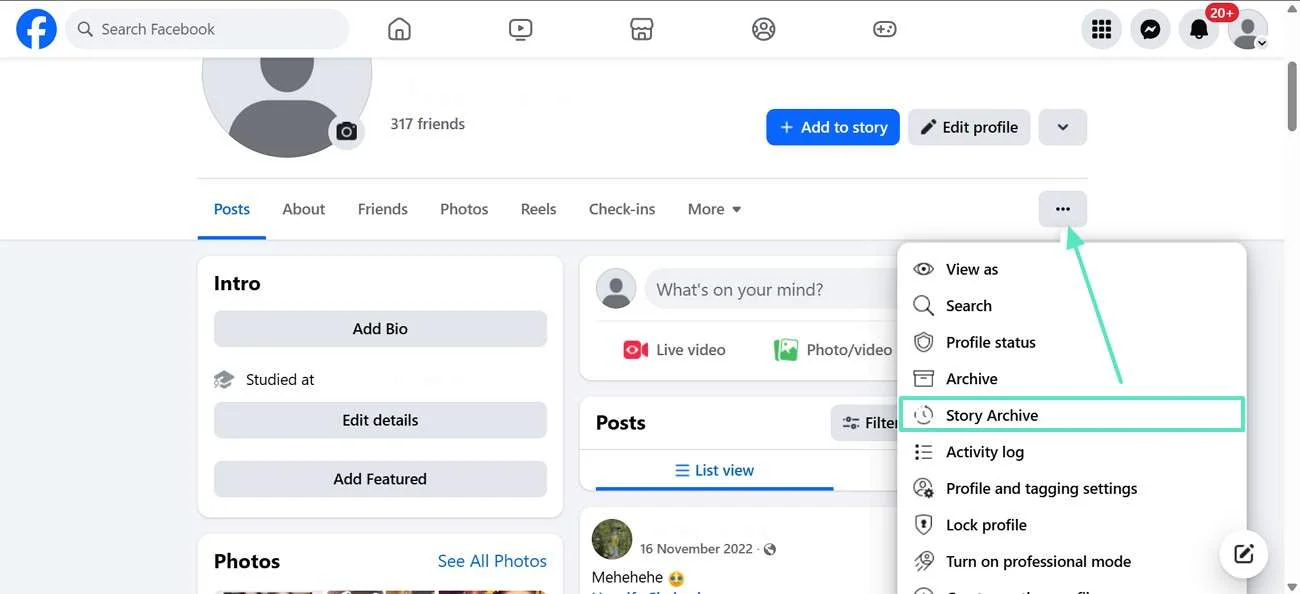
  • Select the More button (represented by three dots).
  • 点击 Story Archive from the dropdown menu.
open story archive

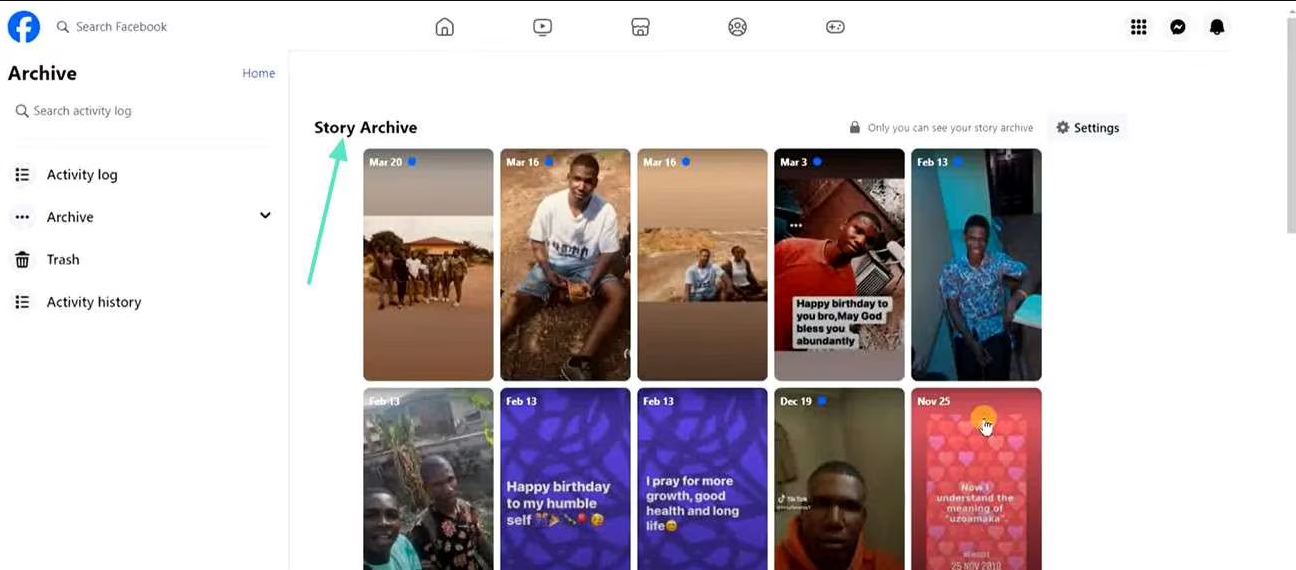
Facebook will display all stories that have been automatically archived after their 24-hour lifespan expired.

Step 2: Open an Archived Story

Once you’re inside the Story Archive section:

  • Browse through your archived stories.
  • Click on the story you want to save.
  • The photo or video will open in a larger viewer.
find archived facebook story

You can now view the content and decide whether you want to save it to your computer.

Step 3: Save Archived Photos

For photo stories:

  • Open the archived photo.
  • Right-click on the image.
  • 选择 Save Image As
  • Choose a destination folder on your computer.
  • 点击 Save

The photo will be downloaded to your PC.

Step 4: Save Archived Videos

Saving archived videos can be slightly more complicated.

Depending on Facebook’s current interface:

  • Open the archived video.
  • Look for a download option in the menu (if available).
  • If no download button exists, you may need to use your browser’s developer tools or a third-party downloader to save the video.

This method works for individual videos but becomes impractical if you need to save dozens or hundreds of archived stories.

Step 5: Download Your Facebook Data

If you want to save all archived stories at once, Facebook offers a data export feature.

Here’s how:

  • Click your profile picture.
  • 选择 设置和隐私 > 设置
  • 导航至 您的 Facebook 信息
  • 点击 下载您的信息
  • Choose the date range and media quality.
  • Select relevant categories such as Posts, Stories, Photos, and Videos.
  • Submit the request.

Facebook will prepare a downloadable archive containing your selected data. Depending on the amount of content, the process may take several minutes or even hours.

2. Limitations of Facebook’s Built-in Methods

While Facebook provides ways to access archived stories, there are several drawbacks:

  • Individual downloads require manual effort.
  • Bulk downloading archived stories is not straightforward.
  • Facebook data exports often include unnecessary files and folders.
  • Export preparation can take a long time.
  • Downloaded archives may be difficult to organize.

For users who regularly save Facebook content, a dedicated downloader offers a much more efficient solution.

3. Easily Bulk Download Facebook Media with Faceget

If you’re looking for a faster and more convenient way to save Facebook photos, videos, stories, reels, and albums, Faceget is an excellent choice.

is a professional Facebook downloader designed to help users download content directly from Facebook with just a few clicks. Unlike Facebook’s built-in export feature, Faceget focuses specifically on media downloads, allowing you to save videos and images quickly while maintaining their original quality.

Faceget 的主要功能:

  • Download Facebook albums, images, and videos in bulk
  • Capture content from Facebook pages, personal profiles, groups, and Reels
  • Save videos and images in HD or original quality
  • Customize downloads by filtering images based on type and size
  • Fully compatible with both Windows and macOS devices

How to Download Facebook Media with Faceget

Step 1: Download and install Faceget on your computer. Faceget is available for both Windows and macOS.

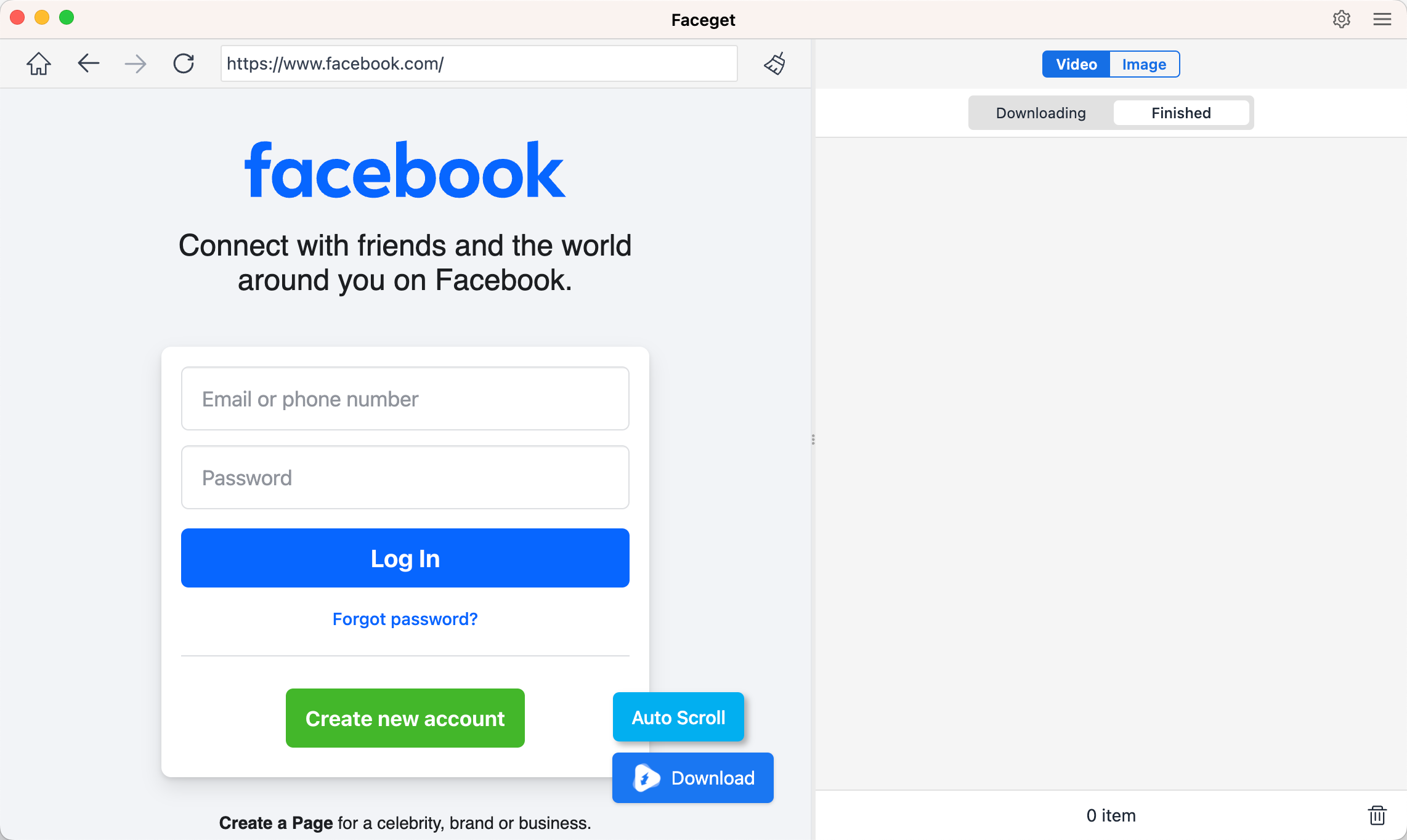
Step 2: Open Faceget and sign in to your Facebook account within the built-in browser to access videos, photos, albums, and other media.

在 Facebook Mac 上登录

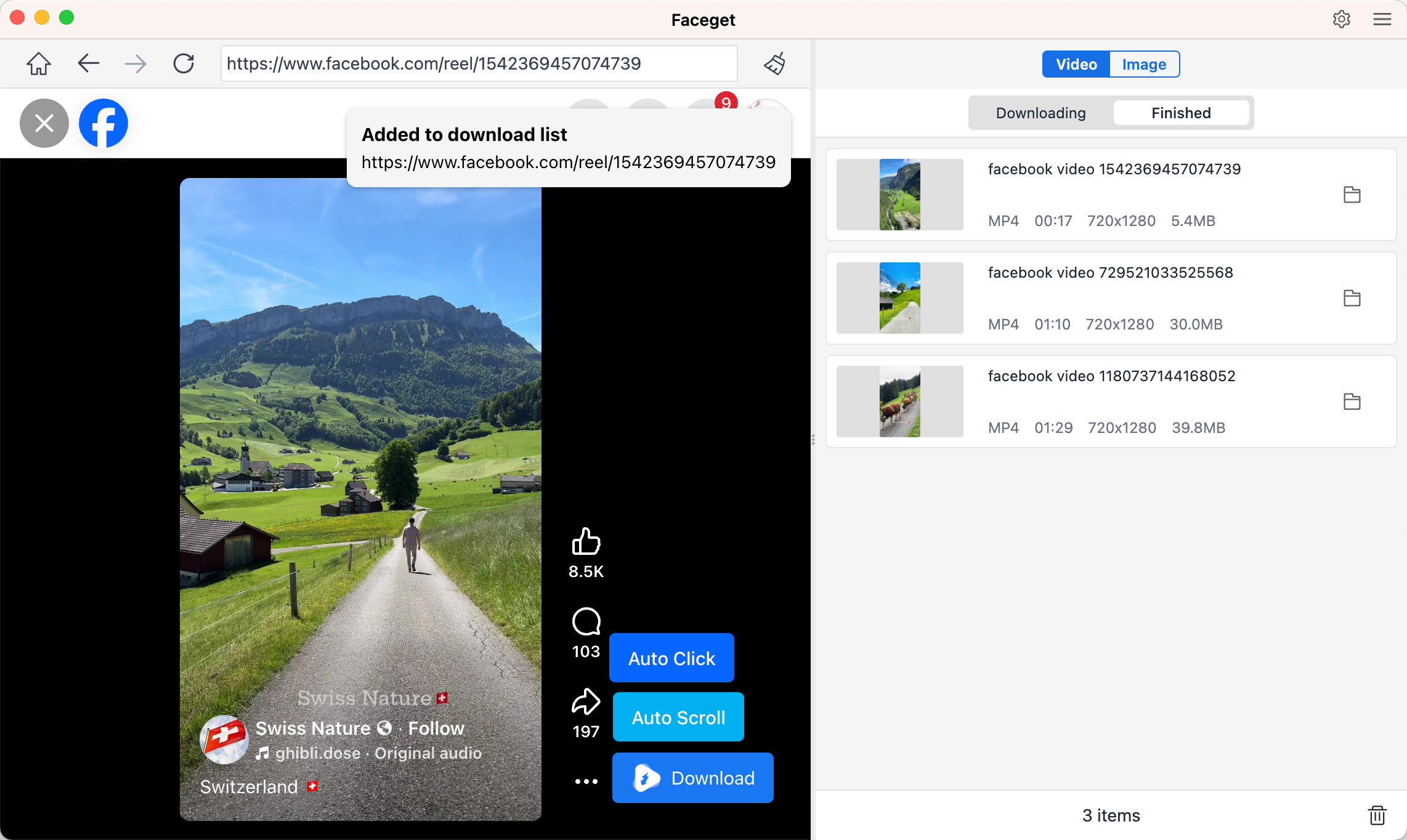
Step 3: To download videos, navigate to the Facebook video you want to save and play it. Faceget will automatically detect the video. Pick your preferred download format and video quality, and click 下载 to begin saving the content.

下载适用于 Mac 的 Facebook 视频

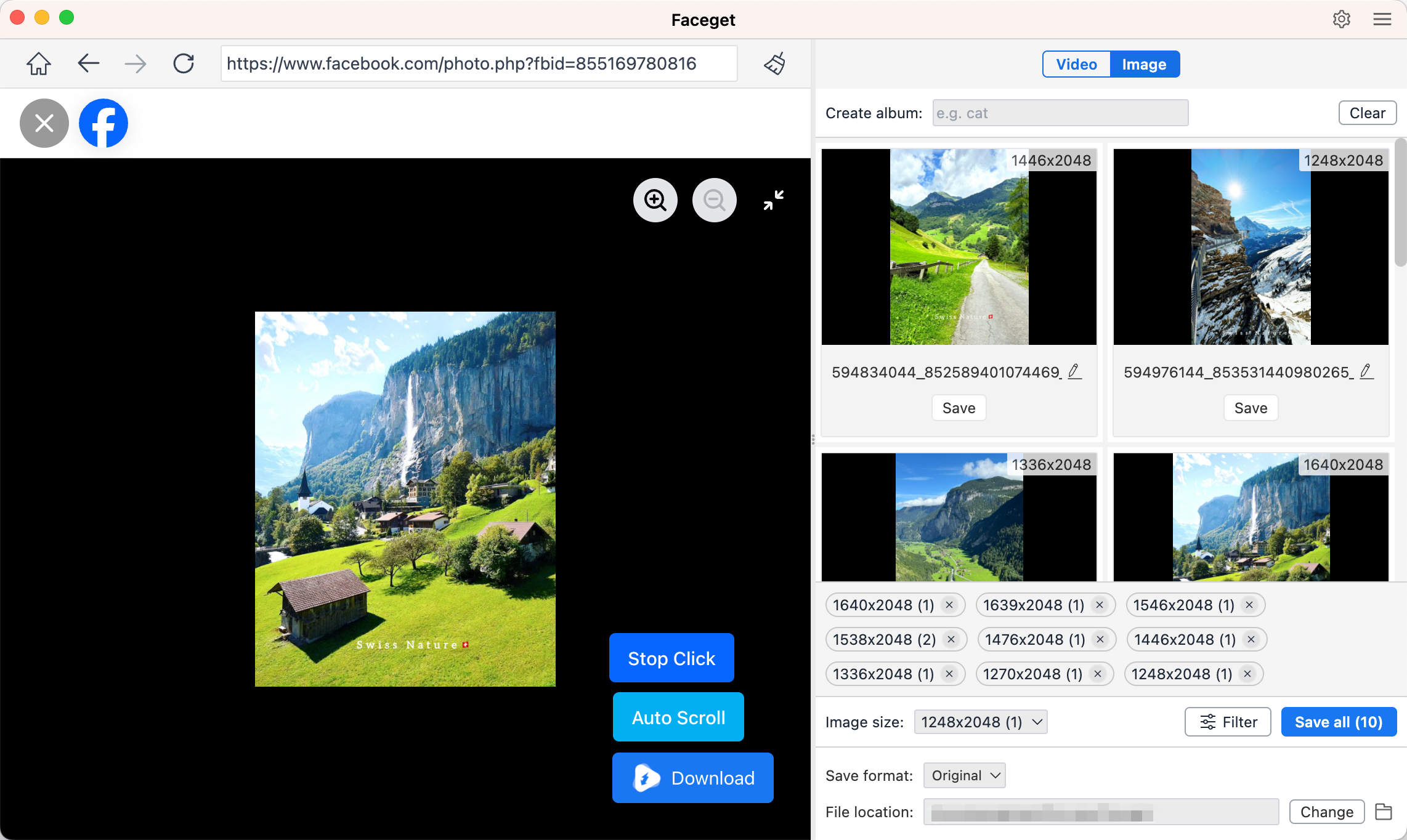
Step 4: To download photos, open the Facebook page, profile, album, or post containing the images. Let Faceget scan and collect all available photos. Select the images you want, then save them all at once.

下载适用于 Mac 的 Facebook 照片

4. 结论

Facebook’s Story Archive is a valuable feature that preserves your expired stories, allowing you to revisit important memories whenever you like. On a PC, you can access archived stories through your Facebook profile, save individual photos manually, or request a complete data export through Facebook’s settings.

However, these methods can become cumbersome when dealing with large numbers of photos and videos. If you want a more efficient way to save Facebook Stories, videos, reels, albums, and images, Faceget offers a much better solution. With its bulk downloading capabilities, original-quality preservation, and user-friendly interface, Faceget makes backing up Facebook content quick and hassle-free.

For anyone who regularly downloads Facebook media or wants to save their Story Archive efficiently, is highly recommended as the most convenient and reliable solution.

留下回复

您的电子邮件地址不会被公开。 必填字段已标记 *